Blog

Producing audio for Let's Never Meet

For the majority of my career in art I’ve been primarily known for my visual artwork. I’ve dabbled in making noises with my Sonification Studies performances (which may make a comeback at some point) but it’s only since my 2018 performance at databit.me that I’ve regularly made and performed music.

On the performance side I’ve mostly used TidalCycles. You may have seen that I have been doing live streams of my rehearsals.

Outside of live coding I’ve spent most of my time getting to grips with software-based synthesisers and DAWs. When asking for advice on this most people told me to use software like Ableton. What these well-meaning people may not realise is that I exclusively use (Ubuntu) Linux and only open source software. This gives me the freedom that open source grants me but boy does it sometimes cause headaches! Plenty of people use the open source options available to them but this approach is still the road less travelld and so I’ve found myself sometimes asking lots of questions and either not getting a response or getting the response that what I’m trying to achieve is not possible.

And so for the last year or so that I’ve creating workflows that work for me. For this I’ve been using Ardour, which is a pretty good cross-platform DAW. So far I’ve produced soundtracks to two of my artworks, We Are Your Friends and Let’s Never Meet. In this Development Update I’ll go over a little trick I learnt whilst making the soundtrack for Let’s Never Meet.

In short, Let’s Never Meet is about meeting people over the internet. The soundtrack is actually a remix of a an Android alarm ring tone.

It’s not an alarm tone that I use myself but it was ambient enough to work in an outdoor setting for an extended period without getting annoying. Plus using a sample from my phone just somehow felt appropriate, if you know what I mean. After many many many hours of producing my remix sounded a bit like this:

I was really happy with the results but it felt like there was something missing. It was pretty samey throughout and I think there needed to be some kind of buildup or change in pace. To address this I decide to add some percussion. I turned to the glitch sample set that is downloaded when you install TidalCycles. It has a nice percussive quality and definitely sound glitchy and electronic, again in fitting with the digital theme of the piece.

As far as playing these samples I did consider manipulating them in TidalCycles and importing the whole recording file into Ardour, but I also wanted to get better with Ardour so sought a solution within that software. The glitch pack contains eight samples and I needed to be able to load them into Ardour to trigger/play at will. The drumkv1 plugin is the perfect solution to this.

Producing audio for Let's Never Meet

It’s a sampler where you assign samples to midi notes. To play the notes you could use a midi keyboard, send the notes from Pure Data, or basically any software that can send midi. I decided to use the x42 step sequencer to input the midi notes. It’s a very simple step sequencer originally built for the MOD platform but, because it’s an lv2 plugin, it can run in any host that supports it.

Producing audio for Let's Never Meet

Using this sequencer I could easily create an eight-step loop that starts simple builds up with more drums over time.

With the samples assigned to midi notes I just needed a way to press the pads in the step sequencer. I have two physical controllers, a Launchpad X and a MPK Mini. The latter only has two rows of four drum pads. The former is an 8x8 grid but I can’t yet program it properly to work with the software I use (more on that another time). In any case, in looking into how to use the Launchpad X with x42 the plugin’s author, Robin Gareus, told me that it’d never be possible because x42 doesn’t accept midi input :-(

I accepted that using a software or hardware midi controller was a no go. I would have to use a mouse, which wasn’t ideal but it would work. The plugin’s author did recommend that I look into BSequencer. It appears to accept midi input but with a deadline looming I didn’t want to spend more time on this by learning yet another software.

Using my mouse in Ardour I started to record the input of me playing the step sequence but I noticed the midi notes from x42 weren’t being recorded.

I found this very strange. drumkv1 was blinking to show it was receiving midi but nothing was being recorded. After some research I discovered that it was because Ardour records external midi. When I loaded x42 as a plugin within Ardour it was sending midi internally. To get around this there are two solutions:

I used Carla as a plugin host to load x42 and then sent the midi output to the correct track in Ardour.

Carla showing x42 being connected to Ardour

This worked but I was getting a lot of latency with the input and the notes didn’t align properly. This is probably easy to solve by tuning my system to reduce latency (I already use the realtime kernel), or maybe something that I was doing wrong, but again with a looming deadline I didn’t want to do anything drastic and time consuming.

The second option was to send the output of x42 out into another application and then have that external application send its midi input into Ardour. To do this I loaded a2jmidid, connected the track’s midi output into it, and then connected the output of a2jmidid into the track in Ardour.

Screenshot showing ardour connecting to a2jmidid and back again

When I started up x42 again in Ardour and started clicking on its pads it all worked as expected!

After all of that effort I recorded myself building up the percussion. Here’s the finished track :-)

I’ve been having a lot of fun making music, so expect more of it from me in the future.

Algorave Cafe Oto - March 5th 2020

On Thursday 5th I’ll be back in London to perform at an Algorave at Cafe Oto

Algorave Cafe Oto - March 5th 2020

I’ll be playing an audio set alongside music and visuals from Deep Vain, Eye Measure, Hortense, Jude Marcella, Mahalia Henry-Richards, Miri Kat, Renick Bell, Seth De Silva, Yaxu, +777000 and hmurd.

Tickets are £15 plus booking for and can purchased from the Cafe Oto website.

Last time I was at Cafe Oto was 11 years ago for an Openlab workshop + performance which helped me on my path to explore programming as a creative practice, so it’s nice to be back but this time performing. :-)


Seamlessly loop Wave Modifier in Blender

Seamless animation

For the Improviz gifs one of the requirements that Rumblesan set is that the gifs loop seamlessly. That is, one would not be able to tell where the gifs beings and ends. In Blender making an animation seamless is pretty easy. There’s lots of examples out there but for completion here’s my simple take on it.

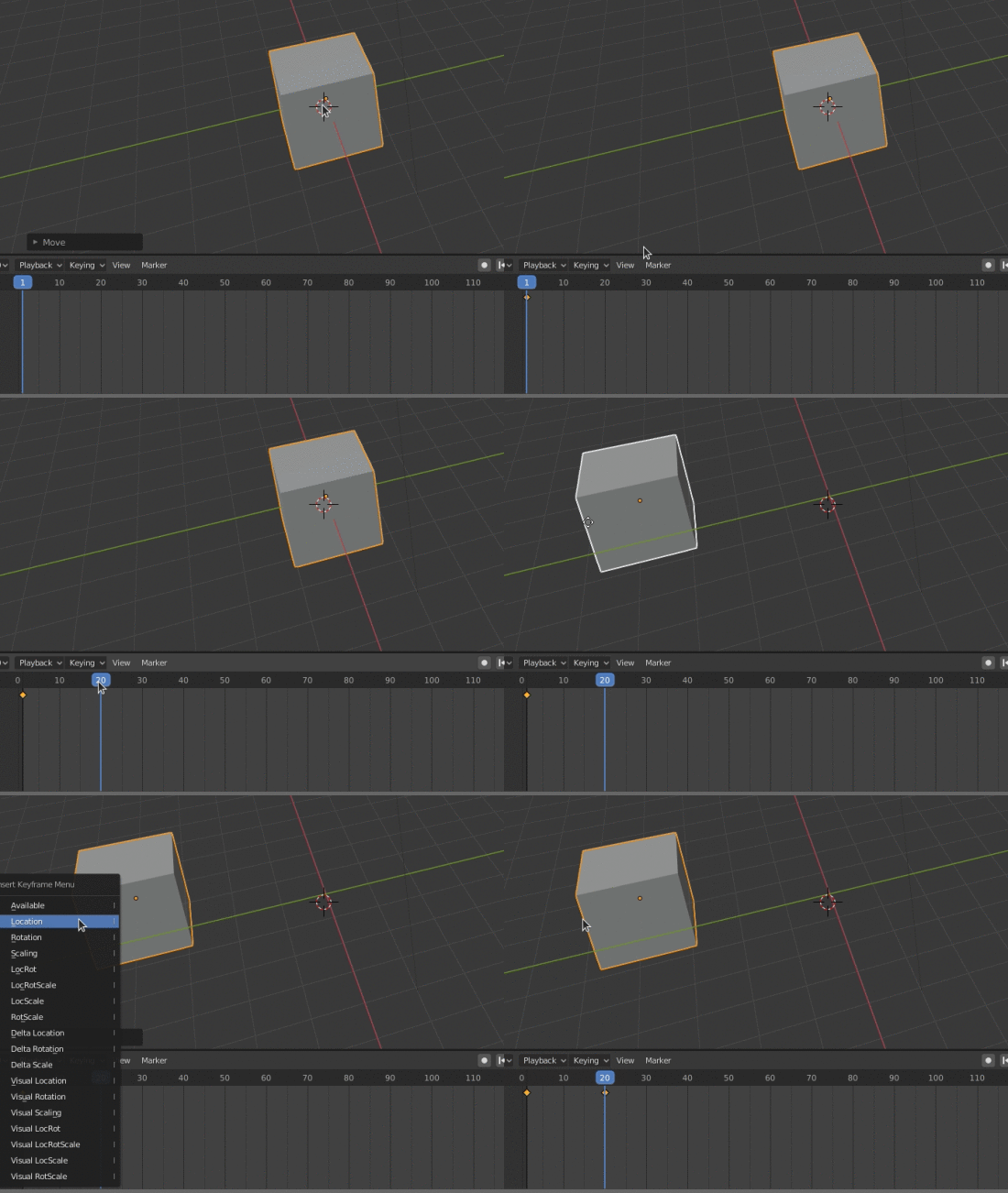
With the default cube selected press I and then press on Location. This inserts a keyframe for the location (this menu can also be accessed in Object > Animation > Insert Keyframe). On the Timeline at the bottom move the animation 20 frames. Then, move the cube to somewhere else.

Seamlessly loop Wave Modifier in Blender

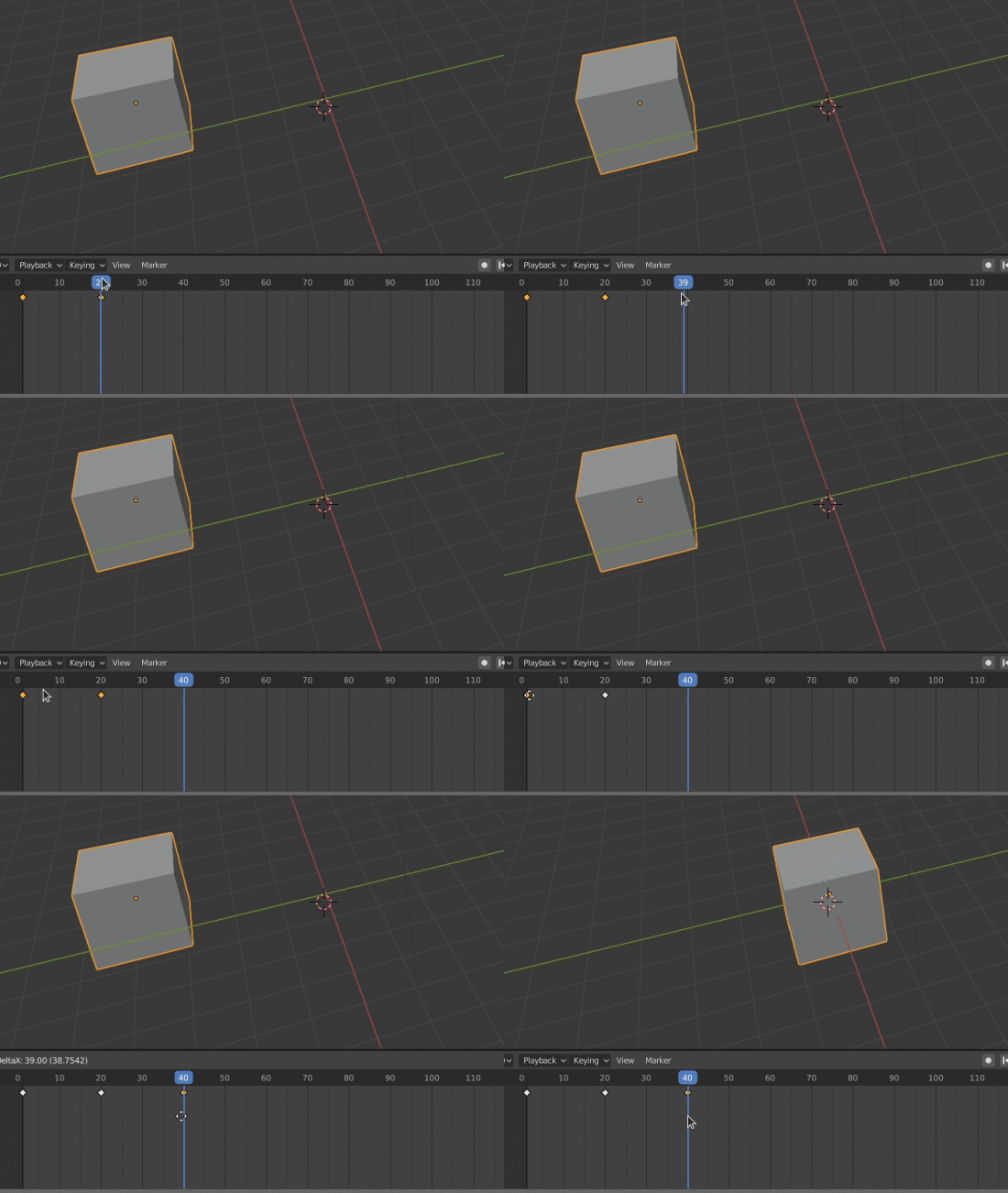
Now press I to insert a keyframe for the location. Ta da! You now have an animation! To make it loop we need to repeat the first keyframe. On the Timeline go forward another 20 frames (so you’re now on frame 40). In the Timeline select the first keyframe. Press Shift + D to duplicate it and then move it to frame 40.

Seamlessly loop Wave Modifier in Blender

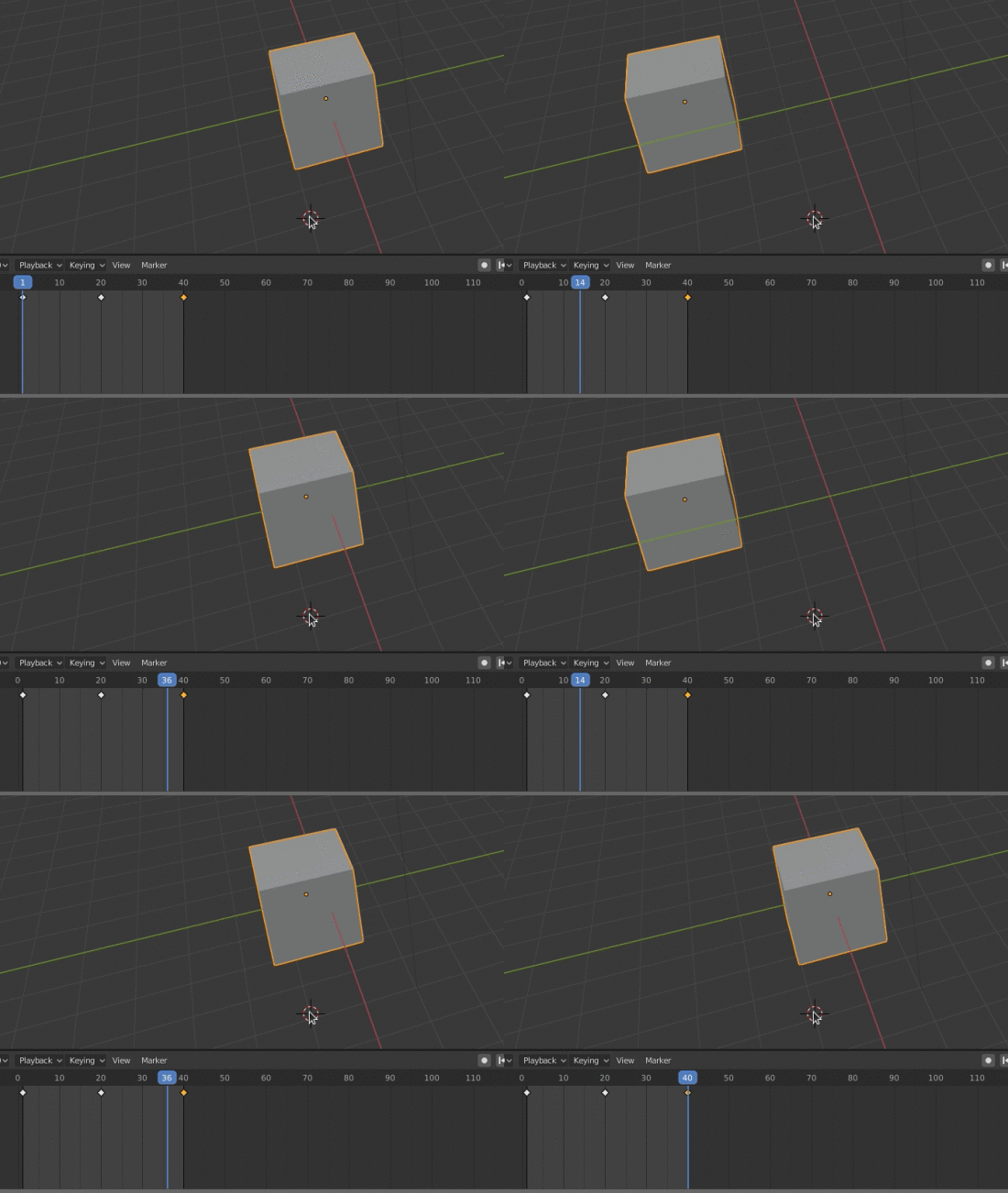
Set the end of your animation to be frame 40. Now when you press play (space bar) the animation loops seamlessly!

Seamlessly loop Wave Modifier in Blender

As an aside if you’re interested in animation check out Eadweard Muybridge. And if you’re into Pure Data check out this tutorial I made in 2017.

Seamlessly loop Wave Modifier

So, that’s one easy way to make a seamless looping animation. However, Rumblesan was more interested in are gifs that warp and morph. This is one example he sent me.

via GIPHY

In Blender one really useful modifier for making these animations is the Wave modifier. In fact, looking through all of the gifs in 2020 by that artist (Vince McKelvie) it looks like he makes extensive use of this modifier. I love how simple it is to get distorted objects without much effort.

The one thing I’ve always found difficult is making the looping of the waves seamless. I haven’t seen many tutorials on achieving this, and those that I have found rely a bit on guesswork, which isn’t ideal. So, I set out to understand this modifier. After a lot of trial and error and “maths” I finally consulted the documentation and started to figure it out! The documentation on this modifier is quite good but here’s my alternative explanation which may help those who think in a similar way to me.

To get your wave lasting a specific duration, first you need to know how long you want your animation to last. For this example I set mine to 50 frames.

You then need to decide on the Width of the waves. The smaller the number the more ripples you’ll have on your object. This value is relative to the object. So, if you set it to 0.10 you’ll have 10 ripples through your object. If you set it to 1 you’ll have one ripple. I’ve set mine to 0.25.

For the Speed you need to do a bit of maths. Copy the value of Width (0.25) and in the Speed argument enter: (0.25*2)/50. Replace 0.25 with whatever value you set for Width and 50 with however long your wave animation lasts before it loops. Another way to represent this would be:

Speed = ($width*2)/$animationlength

The animation loops however the waves don’t affect the whole object. This is because we need to add a negative offset so that the wave starts before the animation is visible. This is where we need more maths! Enter this into the Offset value:

((1/0.25)*50)*-1

The first part, 1/025, is to work out how many times we’d need to repeat the Width before the whole object has ripples throughout it. We multiply by 50 as that is the animation duration. Then, we multiply by -1 to get the inverse, which because the offset. Another way to represent this would be:

Offset = ((1/$width)*$animationlength)*-1

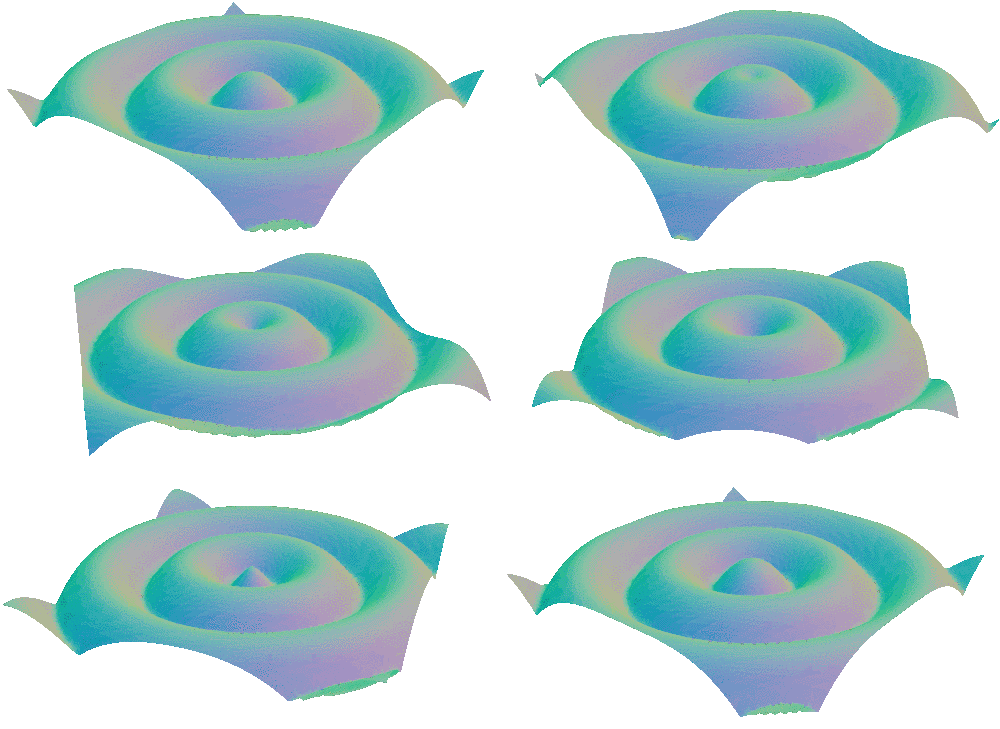
And now the whole object has waves through it and loops seamlessly!

Seamlessly loop Wave Modifier in Blender

Ta da!

Since I originally made the gifs I have found that there are alternative methods for achieving a wavy object which rely on the displacement node and Displacement modifier or the Lattice or Cast modifier. These solutions have much more documentation but I’m glad I spent the time figuring out the Wave modifier.

Seamlessly loop Wave Modifier in Blender

Overlaying multiple textures in Blender

In 2019 I made an internet artwork for Fermynwood’s programme Toggler.

Overlaying multiple textures in Blender

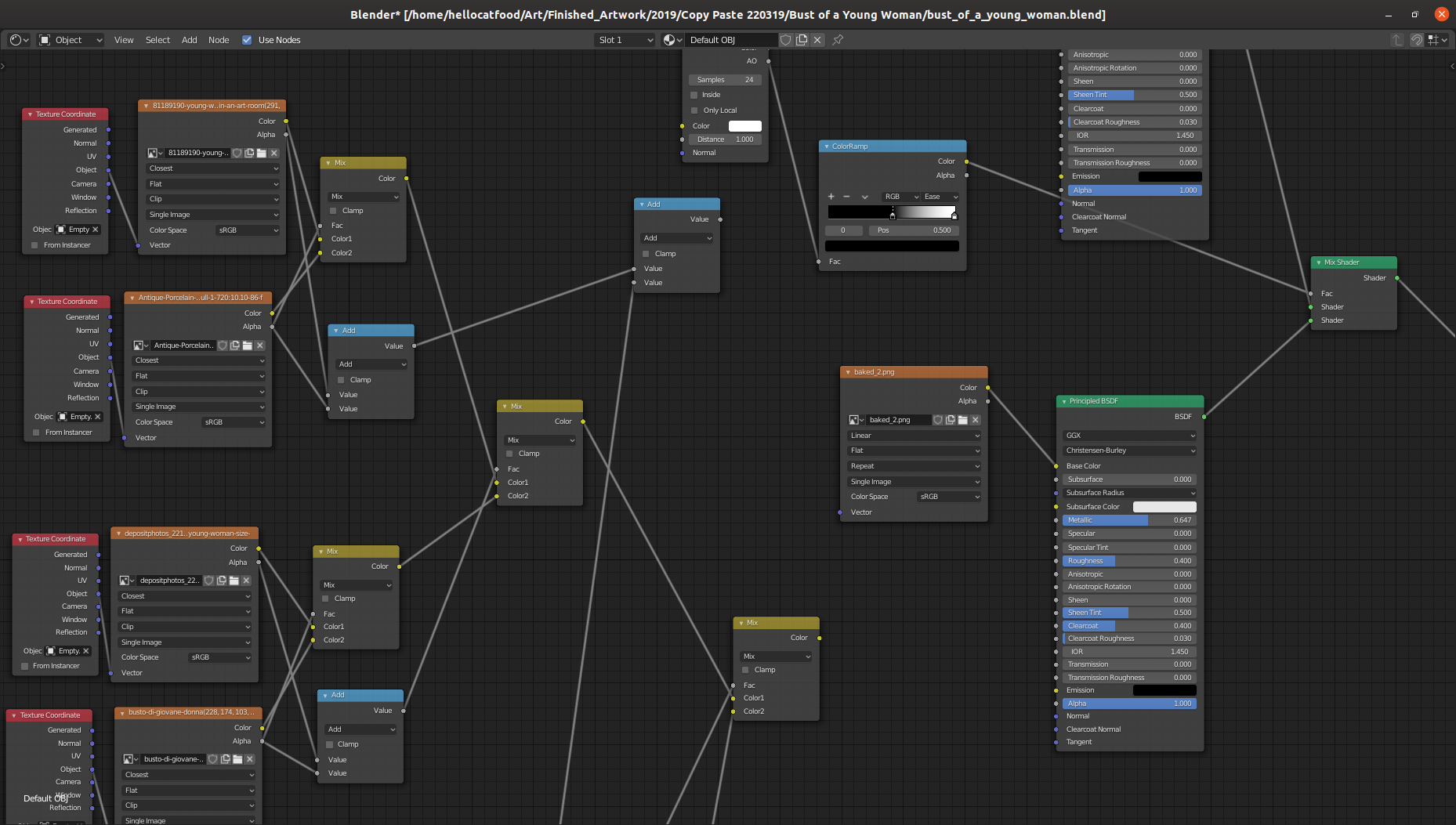
For this work I decided to use a similar aesthetic and process to Visually Similar. I talked a little bit about the process behind Visually Similar in a June’s Development Update. The node tree to overlay each of the transparent textures looked a bit like this.

Click to embiggen
Click to embiggen

When trying to do the same with the Toggler artwork I came across something weird that meant some textures just weren’t showing. So I decided to ask on Stack Exchange and Reddit why this might be the case.

Click to embiggen
Click to embiggen

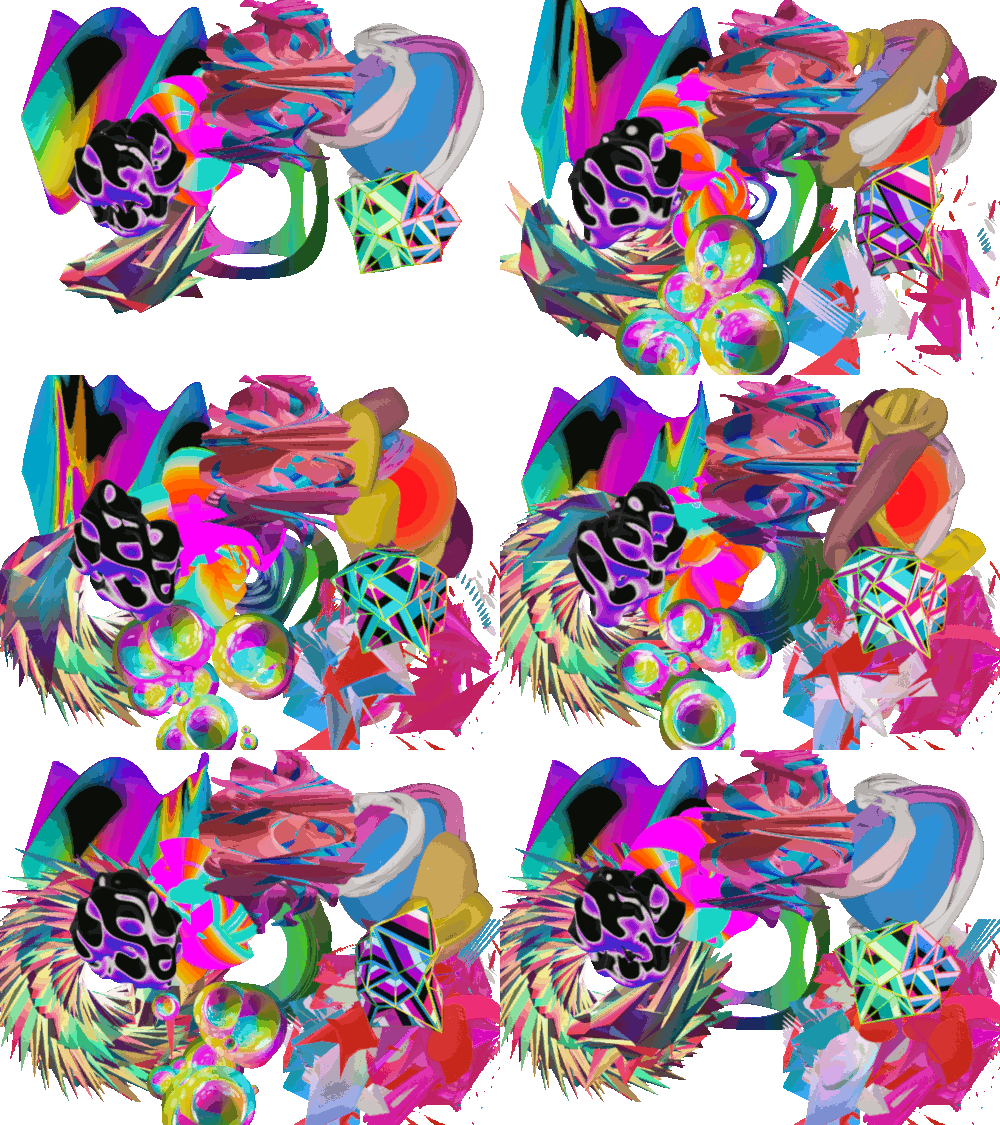
It looks like I wasn’t using the alpha channels properly and didn’t need to use the Add math node, or just needed to use it properly. If were to apply the same process retrospectively to Visually Similar the artwork would look like this.

Overlaying multiple textures in Blender

Curiously several of the textures didn’t show up. I suspect that doing it this “proper” way revealed that I had the order of the nodes incorrect. If I show the work again I’m might edit it so it looks “right”, but in this case the mistakes yielded a more preferable result.