I’m happy to announce that I am curating the exhibition Copy Paste, taking place at Piksel in Norway from 22nd May - 21st June.
If you are an artist, then you have no doubt copied the work of others. This copying can range from using pages from a magazine in collage, adopting the style of an artist, or simply being inspired by the work of an artist. This natural process of copying, taught to us at every stage of our artistic development, is burdened by a very complex and messy set of laws and social conventions which define and limit how we can use copying within our practices. These don’t take into account exceptions or nuances, and come from a historical world where artworks were scarce physical objects, and don’t translate well into a world where culture is abundant and can be accessed and copied at will.
Being an artist who copies is to be an artist working in this murky grey area of right and wrong.
For those artists, I have curated Copy Paste. This exhibition features the work of nine artists and art collectives who all incorporate copying as a core aspect of their work. Taking the form of a physical exhibition at Piksel in Norway, an online exhibition, and an event series, the exhibition aims to show that copying is natural.
There will be a few events happening throughout the exhibition, taking place online and IRL at Piksel’s studio in Norway. More details of that will follow here and on Piksel’s website. Thanks so much to Piksel for the invitation to curate this exhibition :-)
On 16th May 22:00 BST I’ll be doing a gif-enfused audiovisual performance for the Well Now WTF? exhibition.
In the 30 minute performance I’ll be live coding music and sounds for all of the gifs currently stuck at home! If you want to be at the party send me a gif of yourself dancing against a green screen or solid colour by 12th May and tune in to the performance over on Twitch :-)
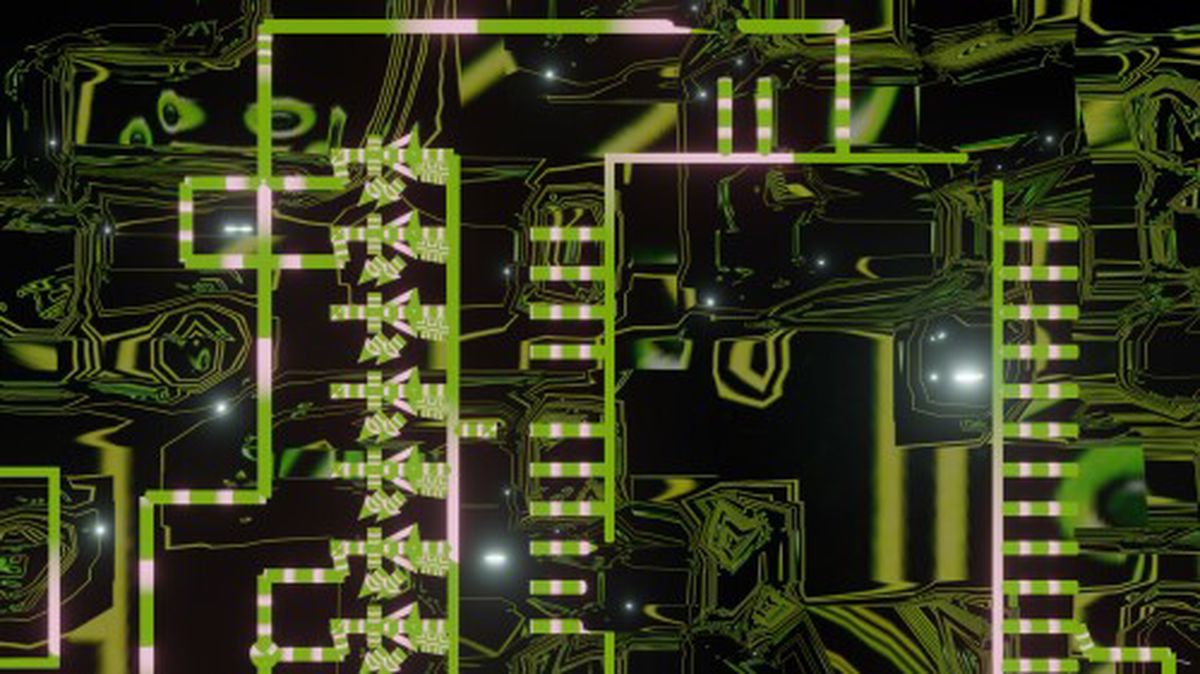
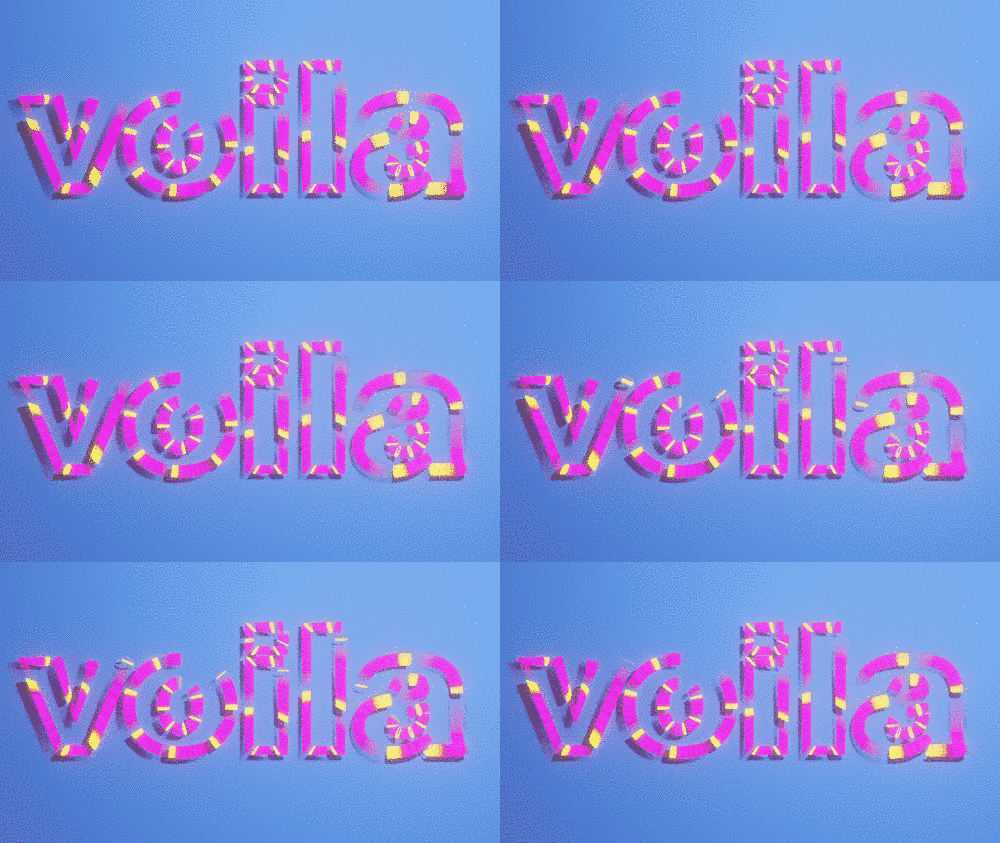
I’d like to return to the fifth video in the Design Yourself series to show how i did a glowing neon trail. The video is heavily themed around robots, and if you look in the background you’ll see that it’s actually a circuit board.
The circuit diagram was a random one I built using the rather excellent Fritzing software. If you’re ever looking for high quality SVG illustrations of electrical components then Fritzing is a great resource. I brought the exported SVG diagram into Blender to illustrate it a bit.
If you look closely you can see that the circuit board has a glowing trail. To achieve this effect I followed this tutorial:
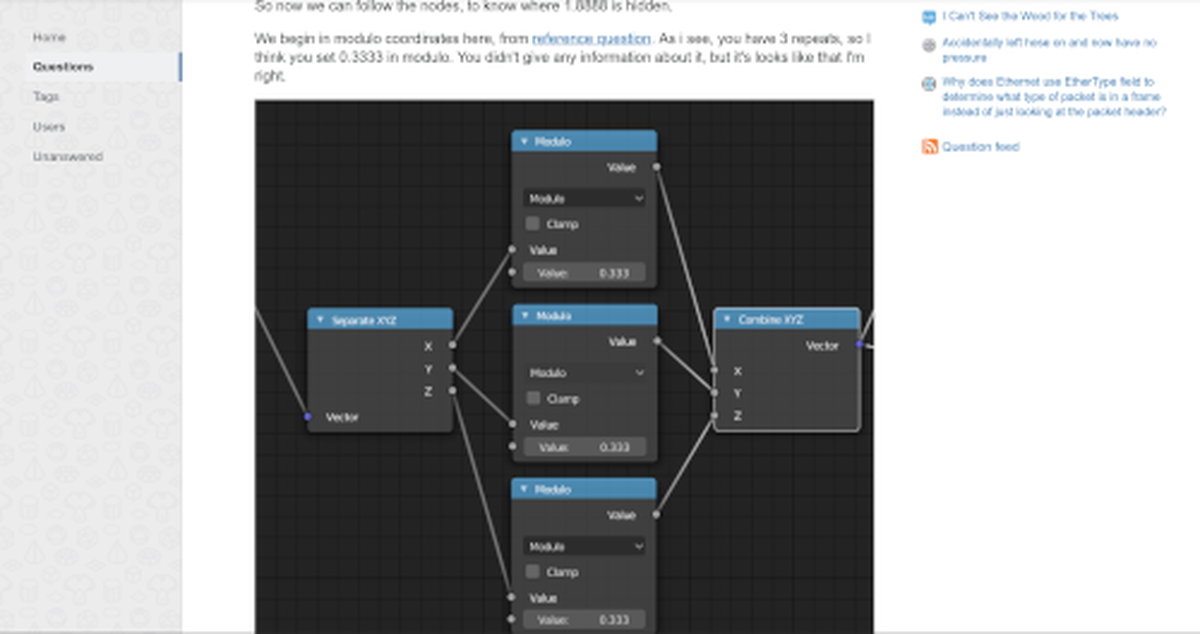
At around 6:00 the author tries to find the point where the neon trail position loops but does it visually. At first I was doing the same but then I remembered that in the past I had faced a similar problem when trying to loop the Wave texture. To get an answer for that question I consulted the Blender Stackexchange site
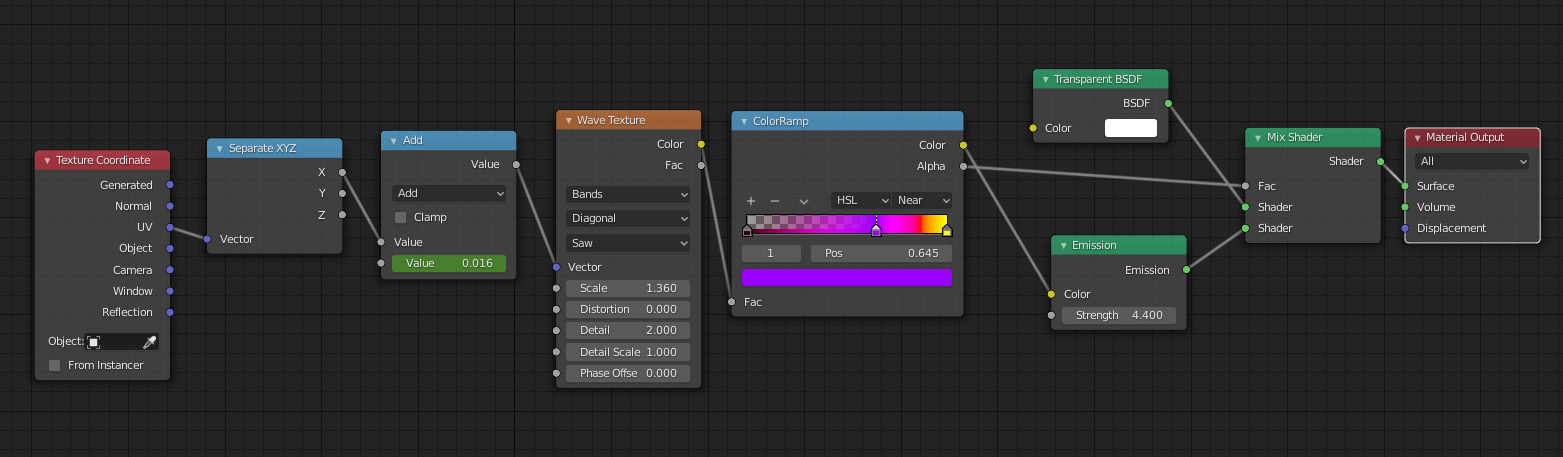
I adapted this a bit and came up with the following solution: To seamlessly loop the neon trail effect first insert keyframe with the Value of the Add node set to 0. Move to a point along the timeline where you want it to loop and add another keyframe to the Value of the Add node and type (0.3333*pi)/$scale (but replace $scale with whatever the Scale of the Wave texture is). My node setup is the same as in the video but here it is as well:
click to embiggen
Now when you play the animation the neon trail effect will loop seamlessly!
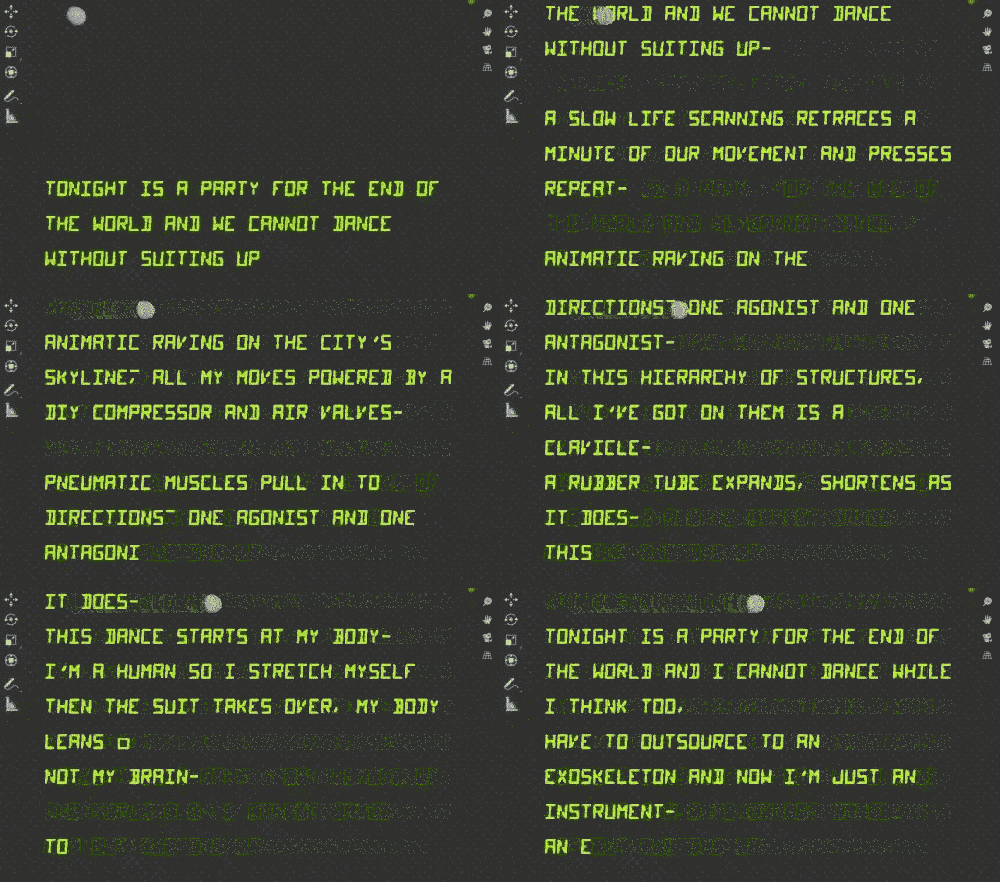
For the fifth video in the Design Yourself series I was faced yet again with the task of doing a typewriter text effect. Yay… For each of the videos the participants wrote a poem to go with it. The poems were a really important part of the video so they needed to have a prominent role in the video beyond standard Youtube subtitles. At the time I was producing the video I didn’t yet know whether or not I wanted to use the typewriter text effect but I certainly wanted to explore it as a possibility. One of the first times I tried to achieve this was back in 2019 when I was making the video to promote the Algorave at the British Library.
Since making that video, to add subtitles to a the second Design Yourself video I was using a Natron plugin that would allow synced playback of an audio file via VLC. By using this approach I could seek through the audio and add keyframes to the Text node when the text changed. This mostly worked but sometimes the audio did go out of sync. At some point afterwards I wondered if I could offload the editing of the subtitles - and maybe even subtitles with a typewriter text effect - onto another more specialised program and then import that into Natron later for compositing. Subtitle editing software already exist and are much better suited to editing subtitles than Natron.
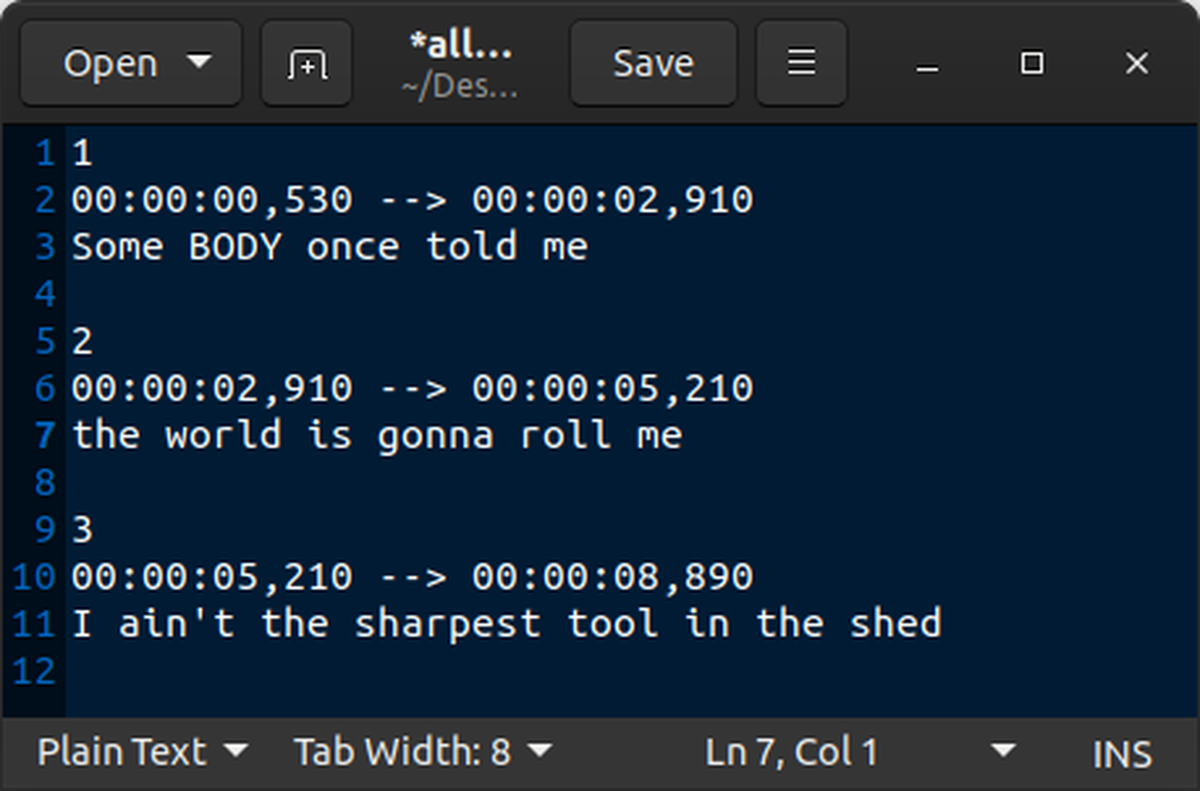
I explained this on the Natron forum to one of the developers and some time later the Text node gained the ability to read an SRT subtitle file! An SRT file subtitle file format that is widely used on video files. If you open one up you can see exactly how it works:
The way the SRT reading function works in the new Text node is it basically gets the time stamps of the text in the SRT file and assigns them to keyframes in the Text node.Yay! :-)
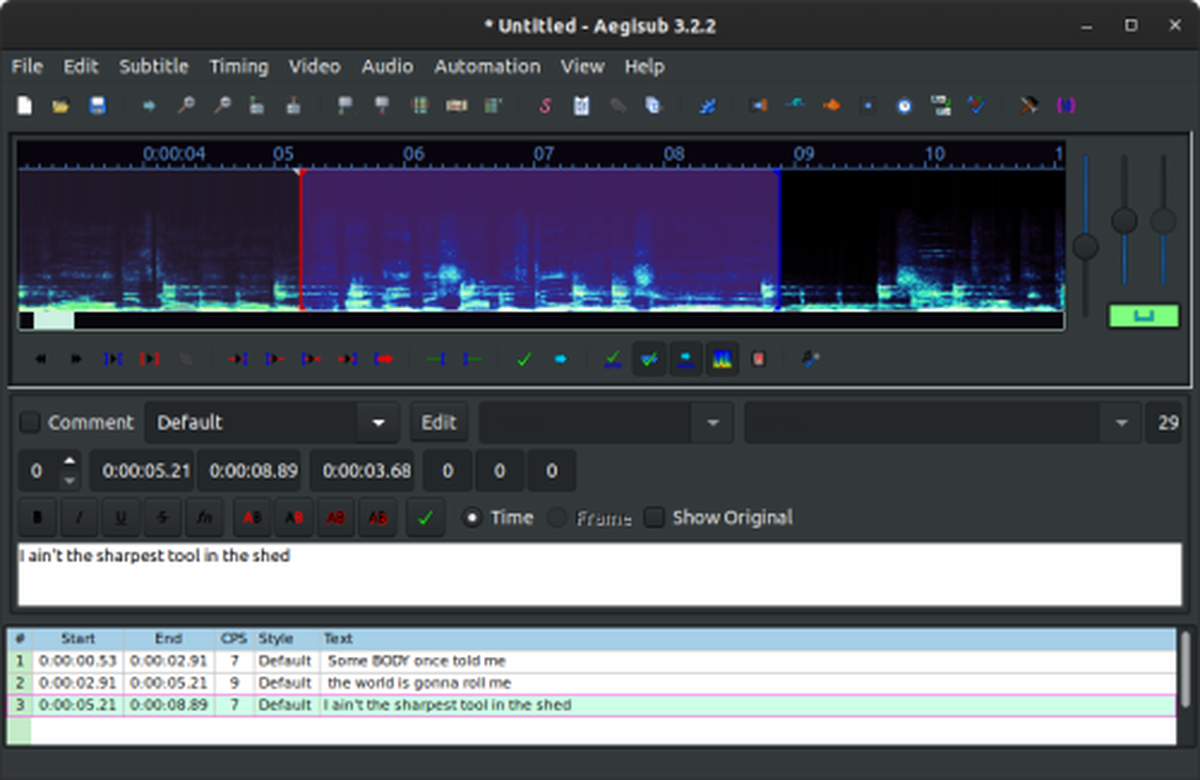
The next stage in the equation was to find a subtitle editor capable of doing a typewriter text effect. There are several open source solutions out there including Subtitle Composer and Gaupol. One of the available software, Aegisub, has quite the feature set. It has a karaoke mode which, as you would expect, can let you edit the timing of words as they appear on screen.
This sounds like the solution to my problem of getting a typerwriter text effect but there’s one big problem. The karaoke text mode only works if the file is exported as an .ssa file format. The SubStation Alpha file format supports lot of formatting options, including typewriter-like text effects. This is good except for Natron only supports .srt file format, and even if it did support .ssa files, I’d still want control over formatting.
To make this work in an SRT file what I needed was for , at user defined poitns, each word to be appended. For example:
1 00:00:00,000 --> 00:00:01,000 Some

2 00:00:01,000 --> 00:00:02,000 Some BODY

3 00:00:02,000 --> 00:00:03,000 Some BODY once

4 00:00:03,000 --> 00:00:04,000 Some BODY once told me

5 00:00:04,000 --> 00:00:05,000 Some BODY once told me the

6 00:00:05,000 --> 00:00:06,000 Some BODY once told me the world

7 00:00:06,000 --> 00:00:07,000 Some BODY once told me the world is

8 00:00:07,000 --> 00:00:08,000 Some BODY once told me the world is gonna

9 00:00:08,000 --> 00:00:09,000 Some BODY once told me the world is gonna roll

10 00:00:09,000 --> 00:00:10,000 Some BODY once told me the world is gonna roll me
But even then I had a few issues. To synchronise the text with the speech I was expecting that I could use keyframes to control the End value in Trim Text node. However, as explained by Animation Nodes’ developer, the keyframes of custom nodes aren’t visible on the Dope Sheet and so animate anyway. To get around this I used the suggestion by the developer:
I suggest you create a controller object in the 3d view that you can animate normally. Than you can use eg the x location of that object to control the procedual animation.
This worked in the viewer but not when I rendered it. What I instead got was just one frame rendered multiple times. This problem has been reported in Animation Nodes but the solutions suggested there didn’t work. Neither did doing an OpenGL render.
However, I came across this interesting bug repot . It seems like the crashing I was experiencing back in 2019 is a known bug. The solution suggested there was to use a script to render the project instead of the built in render function.
import bpy
scene = bpy.context.scene render = scene.render directory = render.filepath
for i in range(scene.frame\_start, scene.frame\_end): scene.frame\_set(i) render.filepath =f"{directory}{i:05d}" bpy.ops.render.render(write\_still =True)
render.filepath = directory
The downside of this script is that it doesn’t show the animation being rendered. It also doesn’t allow you to set the start or end point of the render but that is easily accomplished by changing the range in line 7.
After all of that I was able to render the text with the rest of the video! Finished video is below:
I’m getting one step closer to being able to easily create and edit typewriter text using open source software…
In the sixth and final workshop of our Life Rewired inspired Design Yourself project, the Young Creatives worked with artist and writer Erica Scourti.
Erica shared her practice with the group and explored Optical Character Recognition software and speech to text translation processes, to interrogate how identity and human understandings are influenced by these now everyday filters.
Cosima Cobley Carr worked with fellow member and composer Pietro Bardini on a soundscape using a sax line shared by Nayla Chouaib. The video shows us phone portraits of Vangelis Trichias along with Cosima, lip-syncing along with text to speech software. Pietro Bardini created the backing soundscape by taking Nayla Chouaib’s saxaphone recording and taking it through several layers of resonators, reverbs and distortions.